1
Create your account
Start on the Bayesian Forge homepage and create your account. New users can begin with the free trial before subscribing.
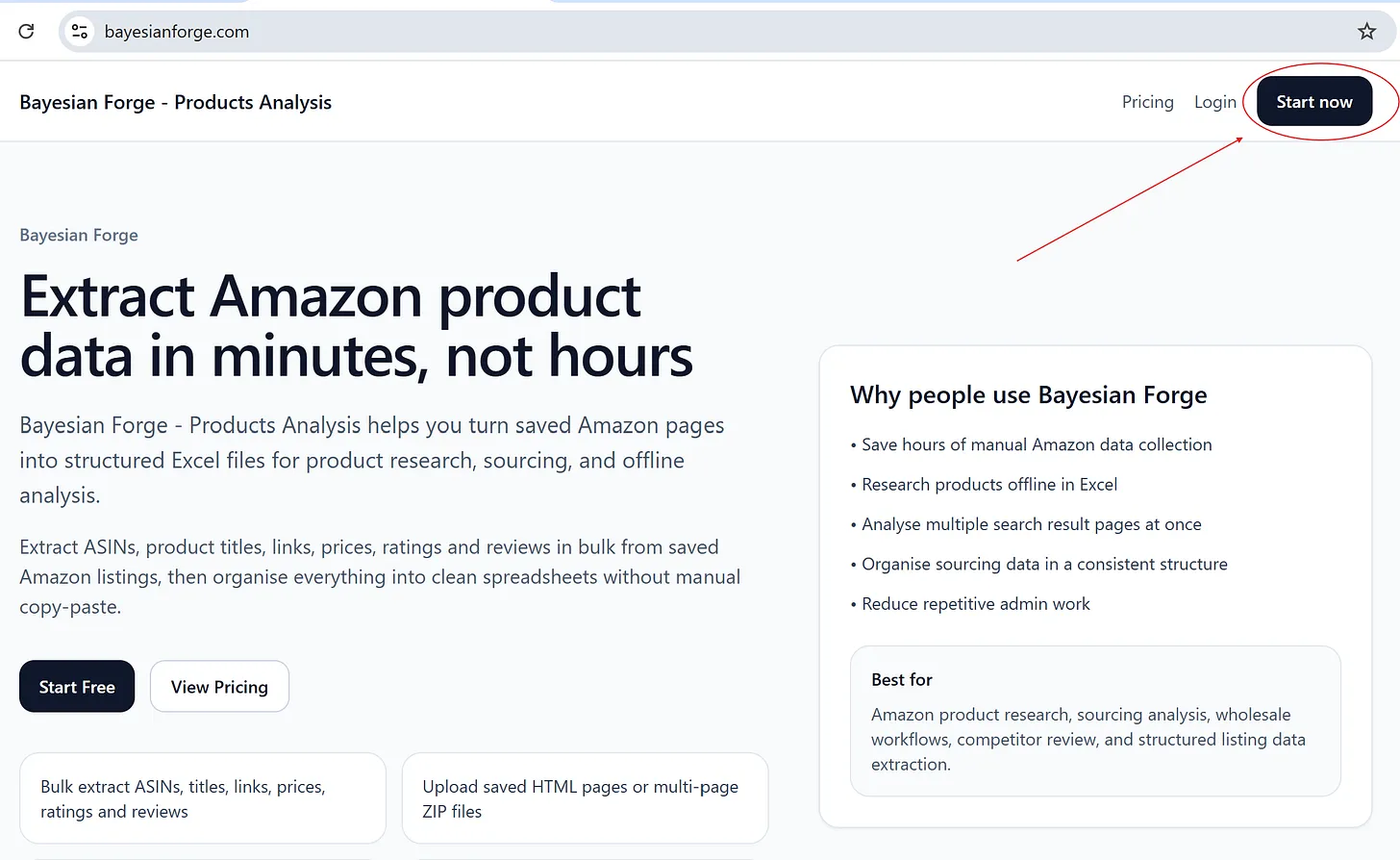
This guide walks you through the complete workflow: create an account, save Amazon search-result pages correctly, zip them, upload them into Bayesian Forge, and download a clean research-ready Excel file.
Start on the Bayesian Forge homepage and create your account. New users can begin with the free trial before subscribing.
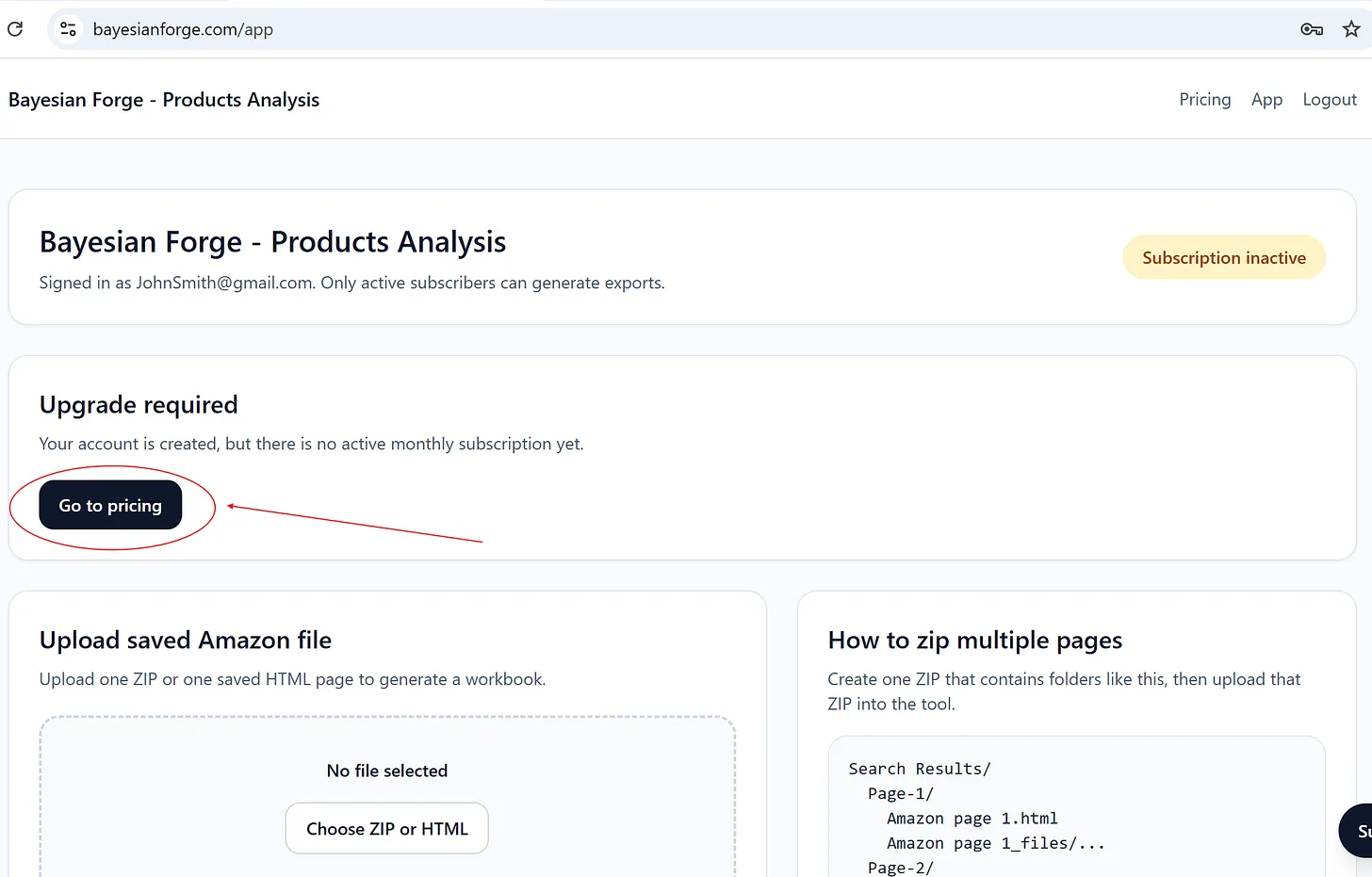
After signing in, you can begin with your free downloads or activate the paid plan from the pricing page when needed.
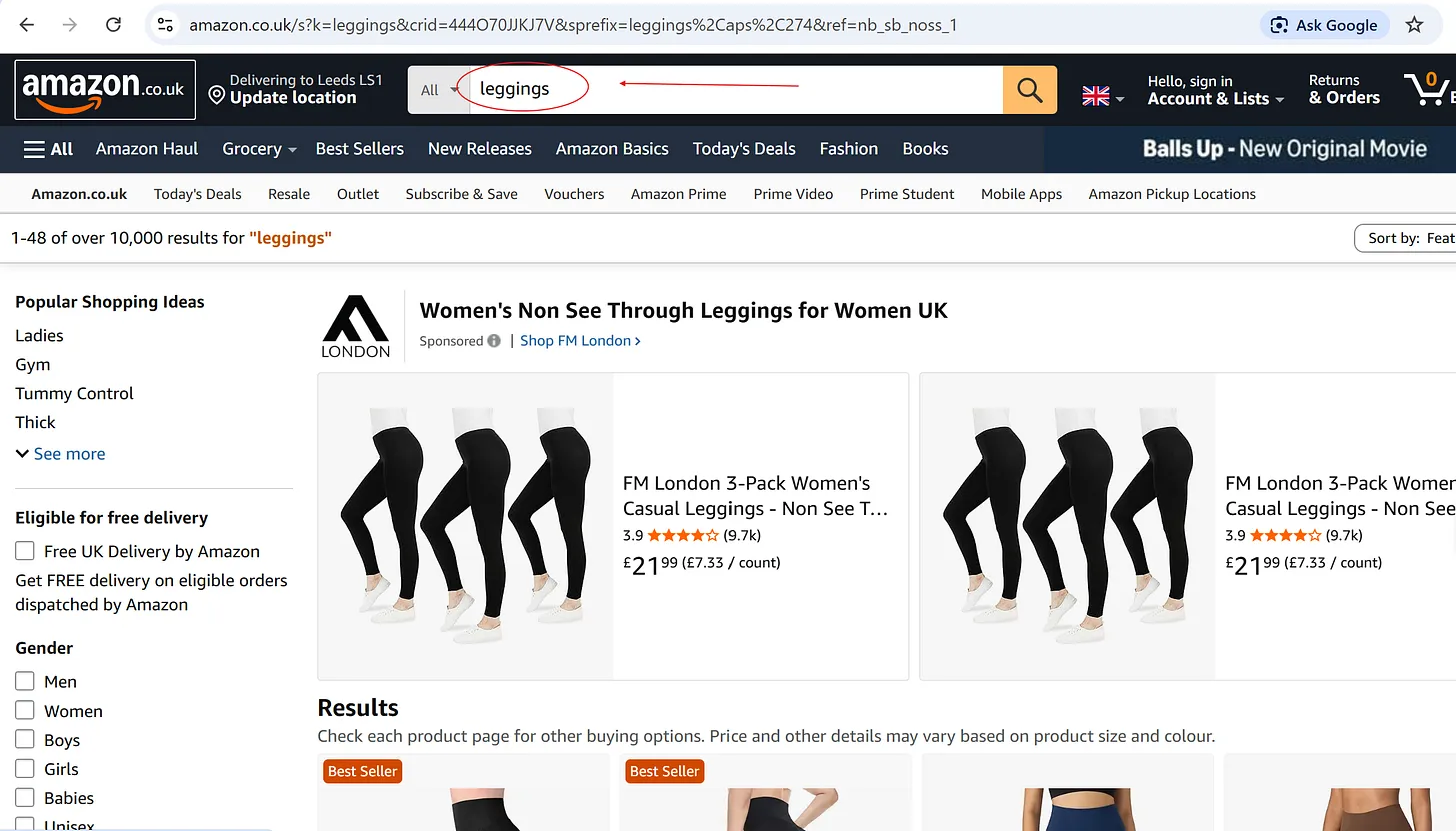
Open Amazon and search for the product type you want to research. The tool is designed to work from saved Amazon search-result pages.
Create a parent folder for the product search, then create a subfolder such as Search-Page-1 for the first saved page.
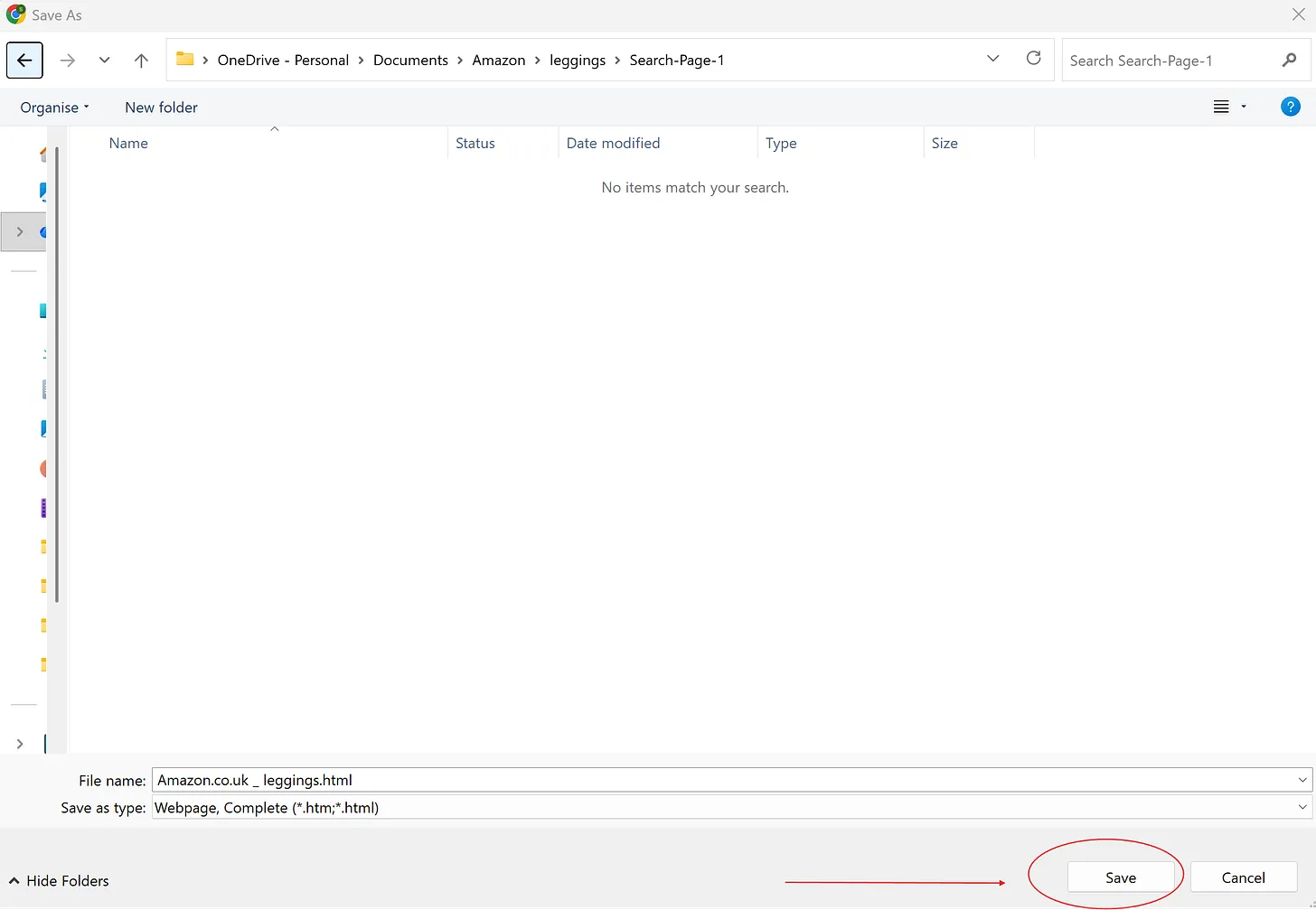
On the Amazon search-results page, press Ctrl+S and save the page as a complete webpage inside Search-Page-1. Wait until the save fully finishes.
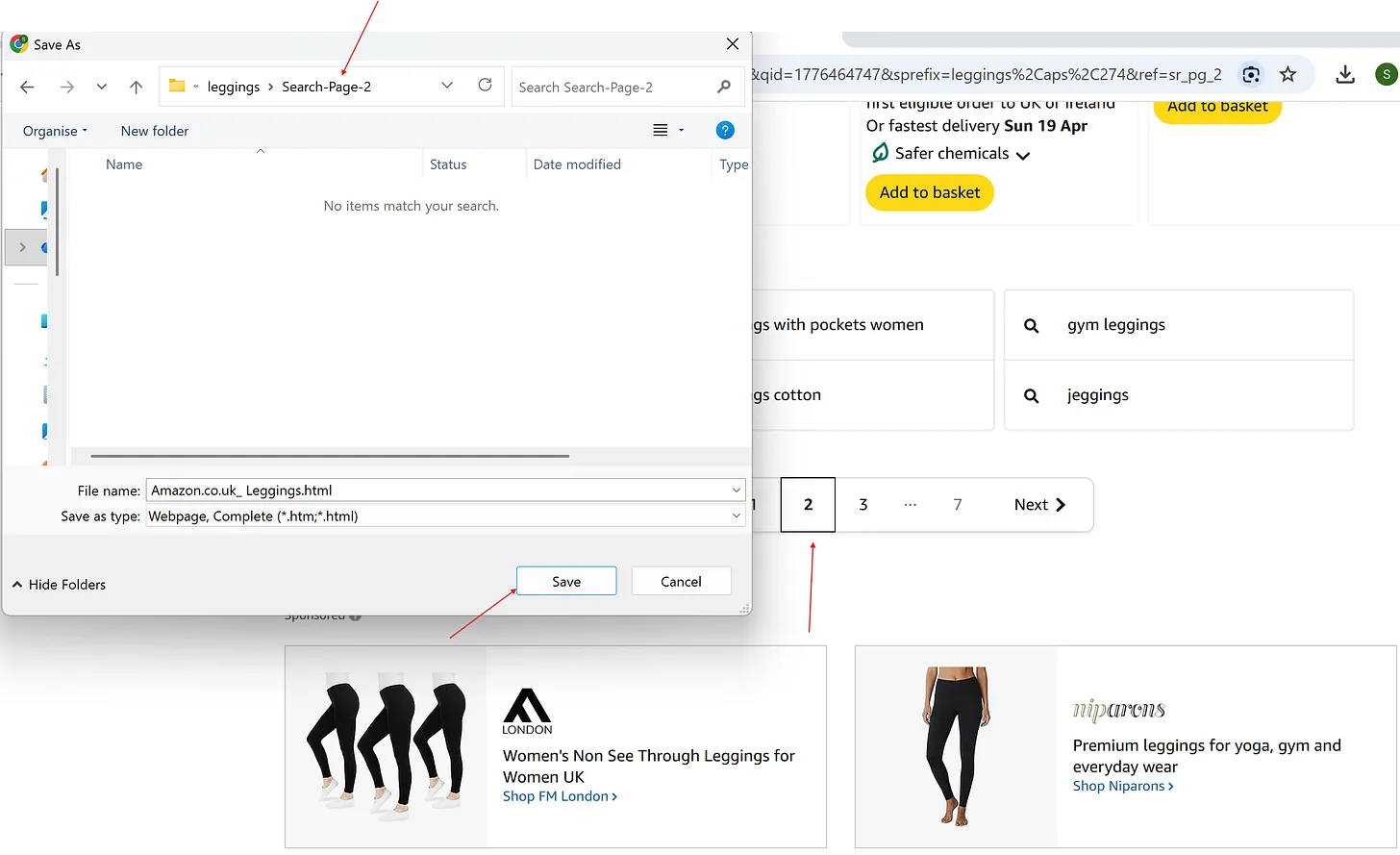
Move through Amazon search pages and save each one into its own subfolder, such as Search-Page-2, Search-Page-3, and so on.
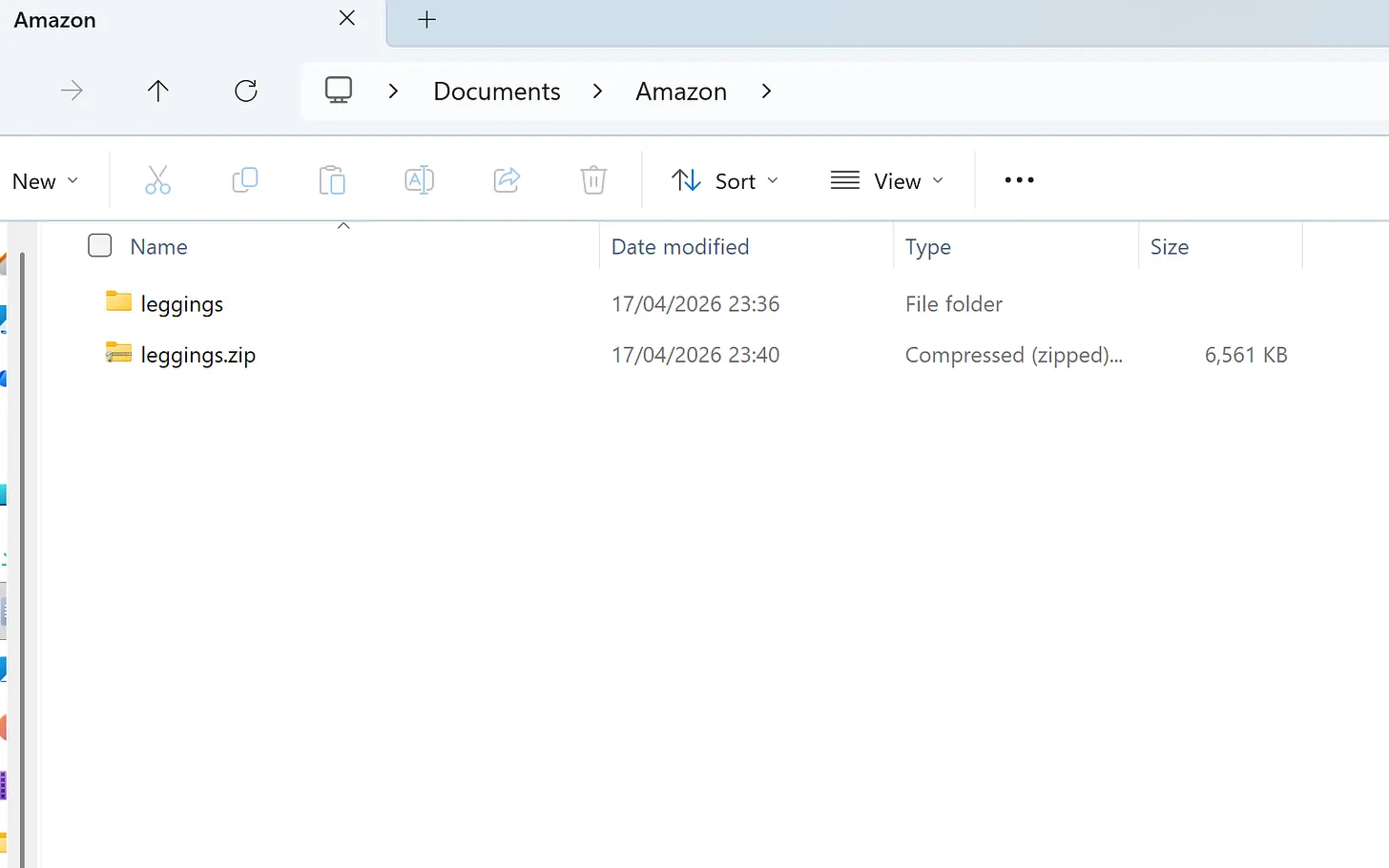
Once all pages are saved, compress the main product folder into a single ZIP file. That ZIP is what you will upload into Bayesian Forge.
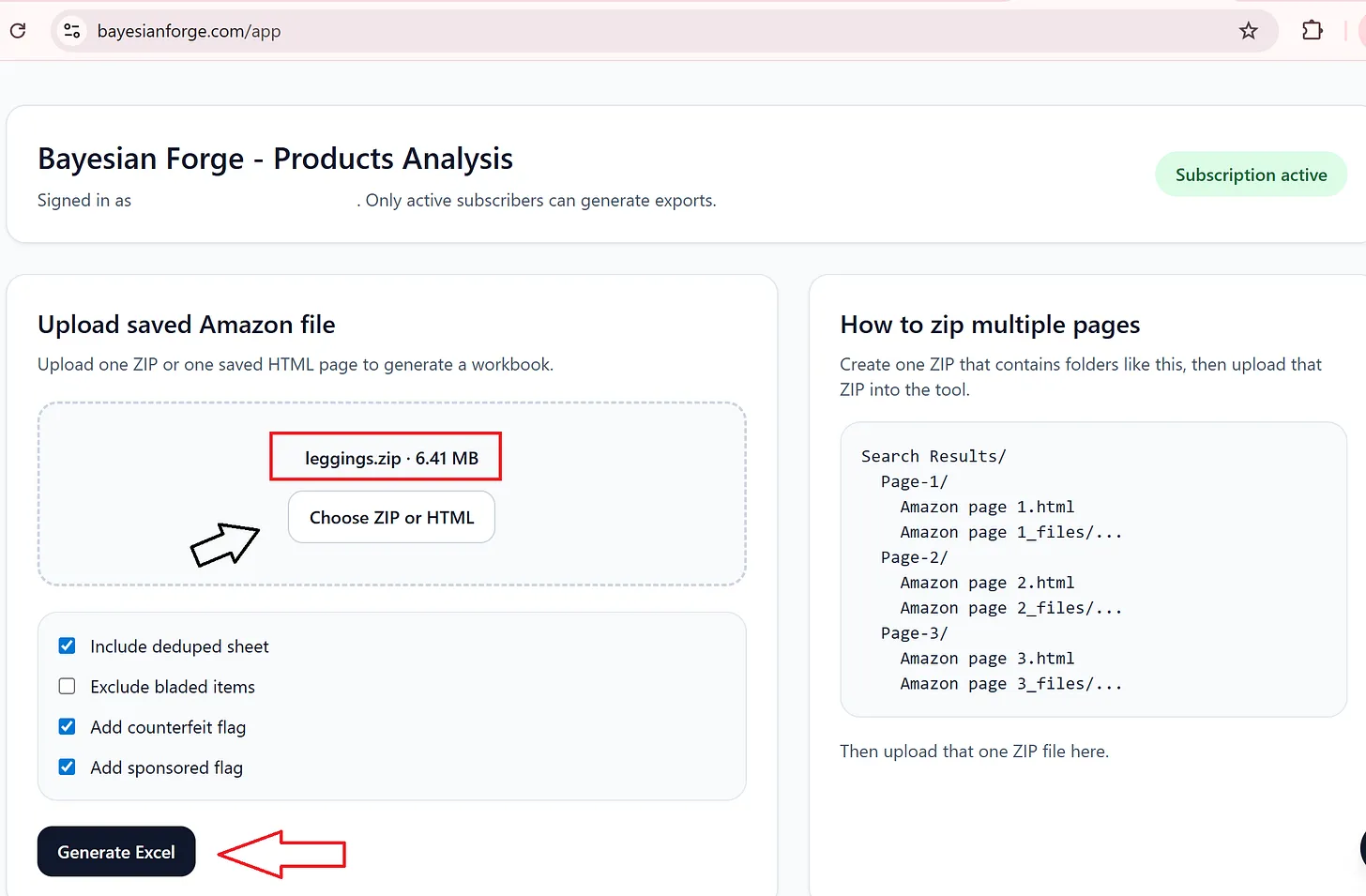
Go to the Bayesian Forge app area, upload the ZIP file, choose your options, and click Generate Excel.
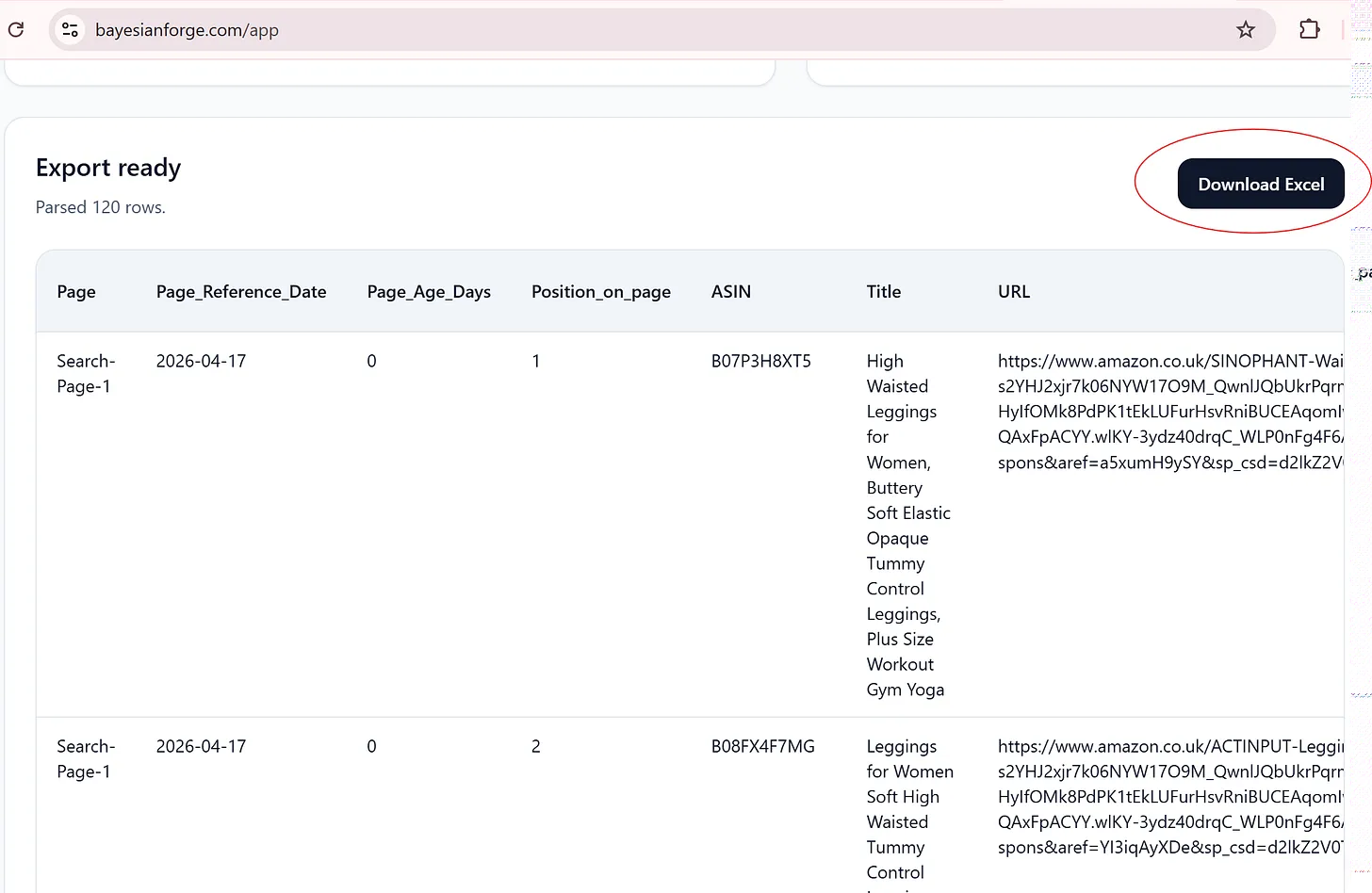
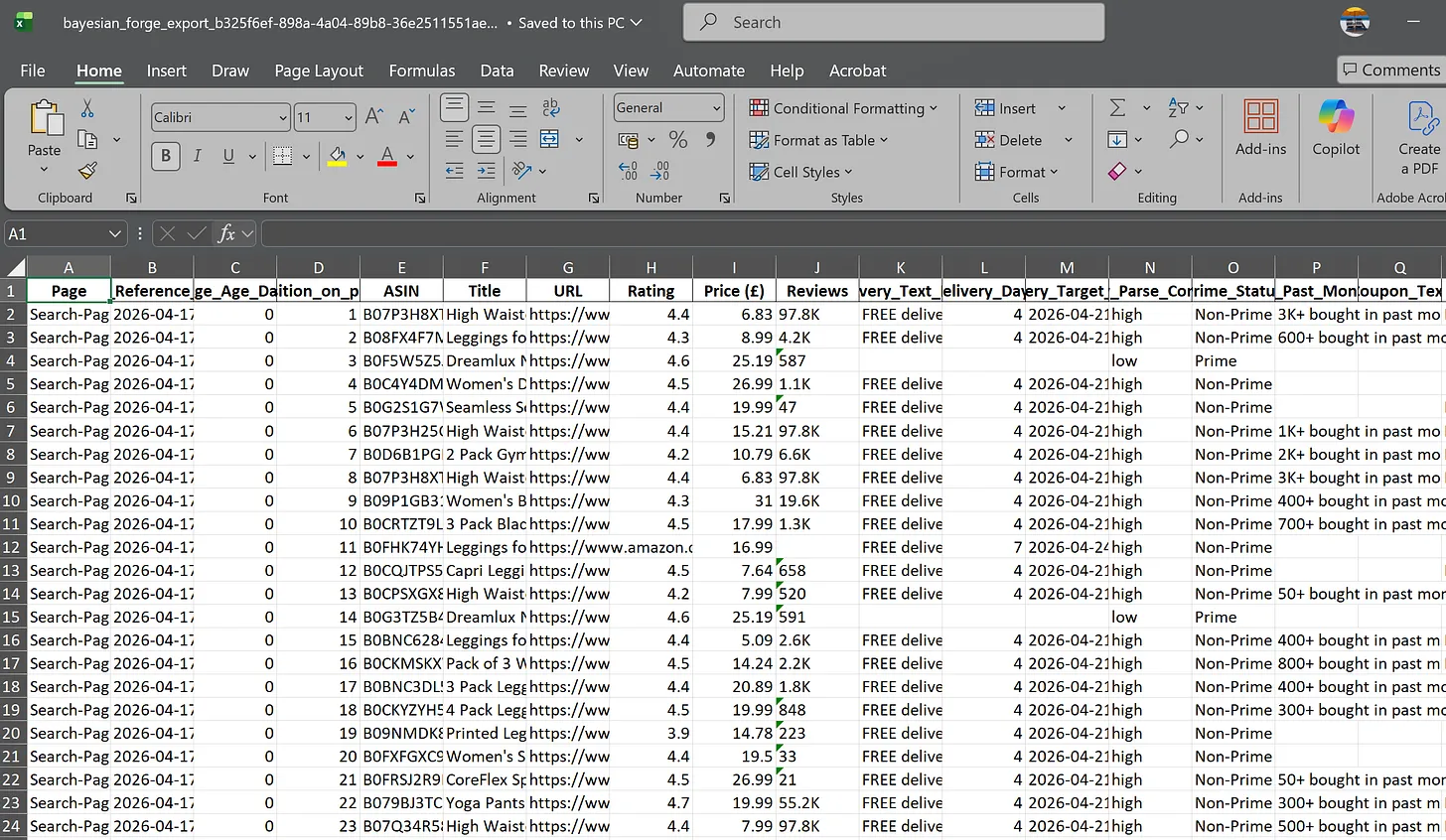
When processing completes, download the Excel file and review the structured product data, opportunity scores, delivery signals, and other research fields.
Your ZIP should contain a structure like this:
product-keyword/
  Search-Page-1/
    Amazon page 1.html
    Amazon page 1_files/...
  Search-Page-2/
    Amazon page 2.html
    Amazon page 2_files/...
  Search-Page-3/
    Amazon page 3.html
Amazon page 3_files/...Do not leave the page before the browser finishes saving the full HTML and its asset folder.
Keeping each page in its own subfolder helps Bayesian Forge read the data more reliably.
Upload one ZIP file that contains all saved search pages for that product search.
Use the export to review product data, opportunity scores, delivery signals, pricing, and other research insights.